
 USER GUIDE
DISCINTEL Governed AI Workspace
User guide: how to decide what your AI may do, require approval where it matters, and keep evidence of every action.
Open DISCINTEL1. Getting started
Create your account
- Go to app.getdiscintel.com and choose Create free account.
- Sign up with a passkey (Face ID, Touch ID or Windows Hello) or with email and password. Passkeys are recommended: there's nothing to remember or phish.
- Verify your email address from the message you receive.
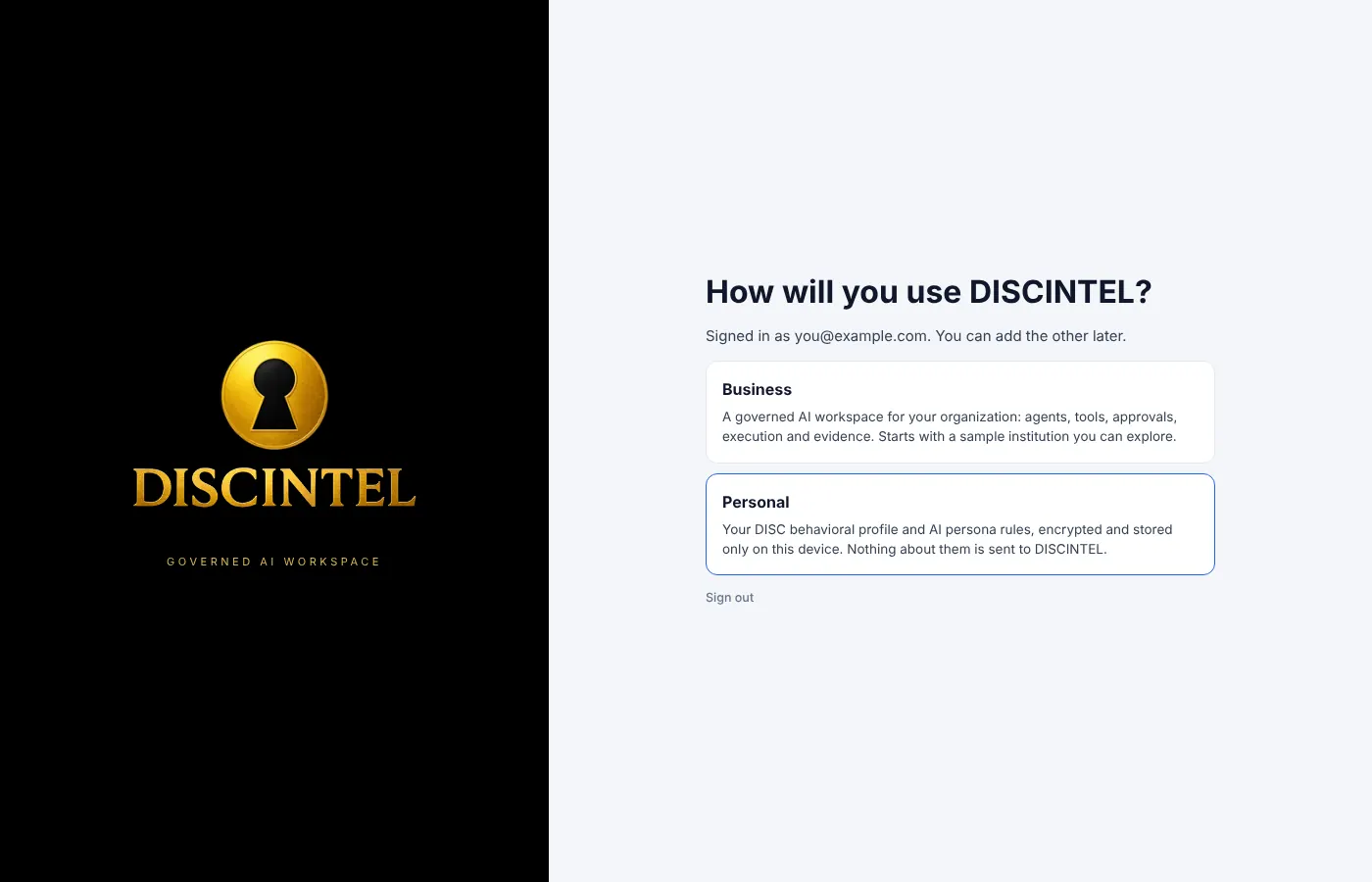
- Choose how you'll use DISCINTEL: Business or Personal. You can open the other one later from the account menu.
2. The Business workspace
Every Business account gets its own isolated workspace, stored on the server and visible only to that account. It starts with a fictional sample institution, ACME Financial Services, so you can explore safely. Its people, approvers, sanctions list and payment rail are simulated. No real money moves.
- On first visit, choose Initialize sample institution. It takes a few seconds and records its own setup in the evidence log.
- You act as Olivia Carter, Treasury Manager, a demo persona. The other approvers are simulated colleagues.
Finding your way around
To see the workspace before you use it, the guided tours walk through the real screens one highlighted control at a time. Start with Finding your way around; you can also open them from Your account → Guided tours.
| Area | What it shows |
|---|---|
| Left menu | Every screen: Chat & Actions, Dashboard, Agents, Authority & Policy, Approvals, Handoffs, Objects & Data, Tools & Integrations, Executions, Outcomes, TrustDNA Evidence, Inspector, Research, Legal Intelligence, Reports & Assurance and Administration. On a phone, open it with the menu button. |
| Top bar | The institution, the governance domain of the selected agent, and the environment you're working in. Choose the institution name to open Action context, where you pick the environment and the jurisdiction. Also: search (⌘ K or Ctrl K) across actions, agents, policies and evidence; the save status chip (Persisted · Netlify means your records are saved on the server); notifications; the language menu; and your account menu. |
| Agent selector | Above the chat. The agent you choose acts for every new request. Your agent, environment and jurisdiction are remembered for your account, so a reload or another device picks up where you left off. |
| Right panel | The context for the action in focus: consequence class, institution, domain, environment, jurisdiction and policy set as recorded on that action, plus required approvals and recent activity. Under it, New requests use shows the context your next request will get, with Edit to change it. The Selected Agent card is the agent for new requests and says when the action in focus has a different agent or none. With no action in focus, the panel shows the context for new requests. |
Environments
The workspace offers two environments, Production and Test. "UAT" means Test. Every action and tool call is checked against three things: the environments the tool allows, the environments of the governance domain, and the environments the agent is registered for. A mismatch is refused, and the refusal names the environment and what doesn't allow it.
- Agents start registered for Production only. An administrator adds Test through a governed change (see Administration).
- Changing the environment is a material change: open decisions and approvals stop applying and must be re-evaluated.
Jurisdictions
Every action takes effect in one jurisdiction, chosen in Action context (US, EU, UK or CN). A payment, claim or purchase order is blocked unless both its tool and its governance domain allow that jurisdiction, and the decision names which one doesn't (for example Jurisdiction EU: Payment Release API is not permitted there (US)). The workspace checks this itself, whatever the runtime governor's mode.
- Domains start with US only. An administrator adds a jurisdiction to a domain and its tools through a governed change approved by the CFO and the Security Administrator (see the admin playbook).
- Decisions in an EU jurisdiction or member state also show the DORA and NIS2 events that apply, for context. They never change the decision.
3. A governed action, step by step
This is the heart of DISCINTEL. The sample walks a wire-payment batch through the full lifecycle:
Step 1: Ask, and attach the material evidence
In Chat & Actions, type what you want done, for example "Prepare the wire transfer for approval for this payment file." The assistant asks for the material it needs. Add it with the + button:
- Upload File, drag and drop, or Capture Image: PDF, CSV, Excel, JSON and images, up to 50 MB.
- Paste Data, for example rows copied from a spreadsheet.
- Connect Source lists the data sources planned for connection (SharePoint, OneDrive, Google Drive, Box, databases and approved APIs). None are connected yet during early access.
Each file is fingerprinted (SHA-256) when it arrives, and the analysis is labeled informational: reading and summarizing uses no authority. In the sample, the analysis finds 48 payments, screens all beneficiaries, and holds out two exceptions (a duplicate payment and a changed beneficiary account), leaving a clean batch of 46.
The chat understands requests to prepare payments, wires and purchase orders, and questions about sanctions, exceptions, required approvals and policy thresholds, and month-over-month comparisons.
- Sanctions screening on request runs only when the selected agent is permitted to use the Sanctions Screening Service (in the sample, the Treasury and Compliance agents). Any other agent gets Sanctions screening was not run, with the reason. The server decides, and every attempt, allowed or refused, is written to the evidence log with the agent's name.
- Policy documents (a file named or written as a policy, procedure or guideline) are recorded as policies and fingerprinted. A policy is compared with what the workspace enforces for payment release: approval thresholds, sanctions screening and segregation of duties. Each rule it recognizes quotes its sentence and is marked Match, Gap: policy is stricter, Boundary differs (for example "at or above" versus "over"), Workspace is stricter or Stated, not enforced. Requirement sentences it can't read are listed as not understood, never guessed. The reading uses fixed text rules, not AI; it changes nothing the workspace enforces, and each comparison is recorded as evidence. PDF policies with selectable text and Word (.docx) policies are compared too: their text is read in your browser, never sent anywhere, and the reply says how many characters and pages were read. A scanned PDF has no text to read, and the reply says so. The latest comparison also appears on the policy's page in Objects & Data.
- Questions about approved vendors are answered as Vendor Master questions. The answer says where the approved-vendor list is held, whether the selected agent may read it, and that nothing was read; it never guesses from the payment file.
- Answers and analyses appear in Recent Activity as Question answered or File analyzed. Neither uses any authority.
Step 2: Submit for governance evaluation
The assistant turns your request into a proposed action with an amount, targets, principal, agent, tool and requested effect. Choose Submit for governance evaluation. DISCINTEL's decision service checks the proposal against the institution's records on the server, not in your browser, and returns one of four verdicts. Each decision shows that it was issued by the service, and which engine version issued it:
| Verdict | Meaning | What happens next |
|---|---|---|
| ALLOW | Within the authority already granted | Execution admission can be requested. |
| ASK | Allowed only with human approval | The required approvers are listed. Execution waits for them. |
| HOLD | Not enough information to decide | For example, no amount identified, no ready material file, or a weak emergency justification. Supply what's missing and re-evaluate. |
| BLOCK | Outside authority or policy | The action cannot proceed as proposed. |
The decision lists every check with a ✓ or a note. Examples: the agent is active and holds a grant for this effect; the tool is active and the agent may invoke it (possession ≠ authority: having a tool is not permission to use it for anything); the largest payment is within the per-payment scope; the file is bound by its hash; sanctions screening results; and who must approve.
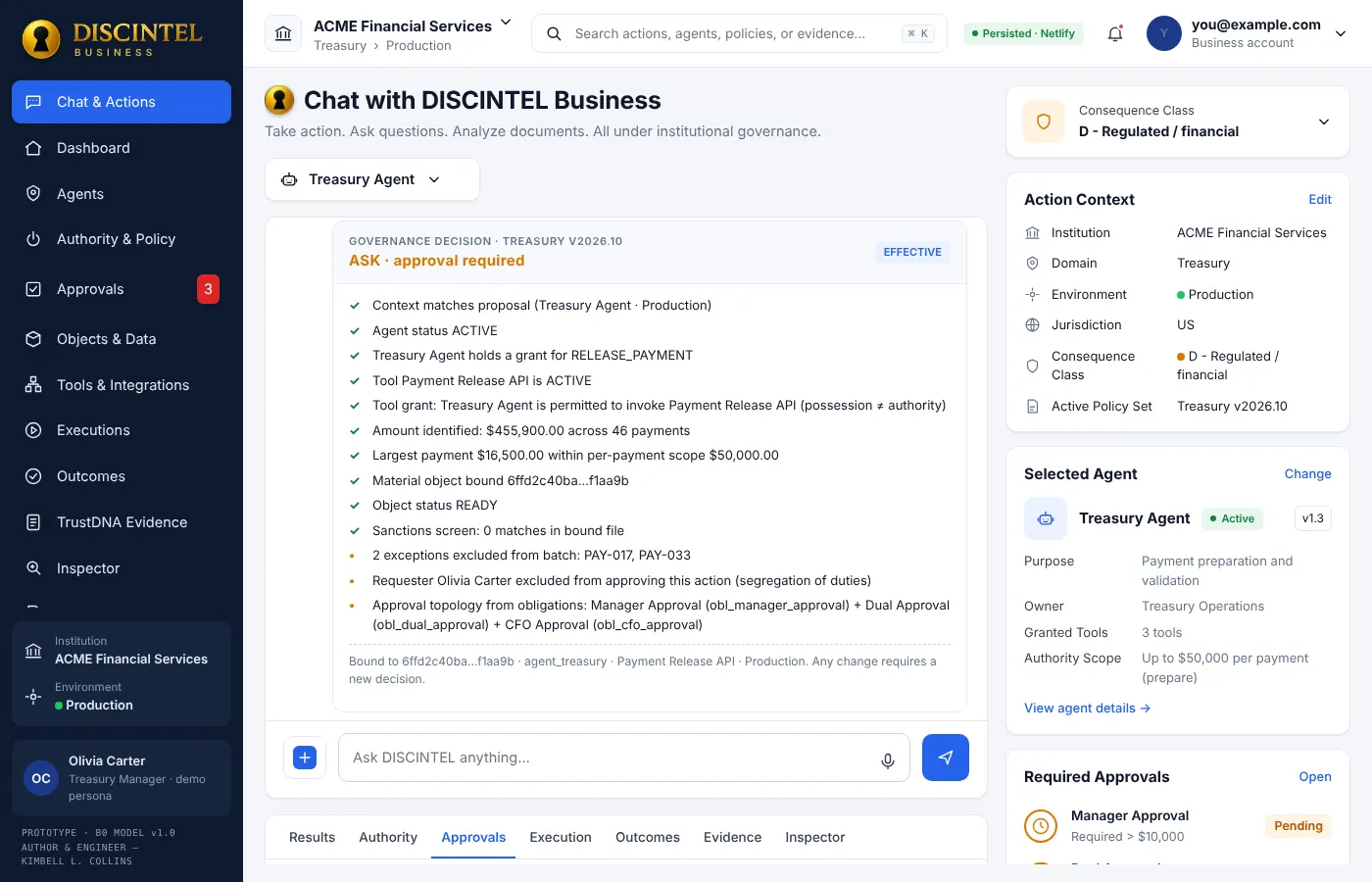
Decisions may also show a Runtime governor (DMGG) line. During early access it runs in shadow mode: its verdict is recorded for comparison (shadow: recorded, not enforced) and never changes the outcome.
Changed your mind? A proposed action that hasn't been evaluated has a Discard button. After evaluation, and up to the moment of execution, use Withdraw request: the decision is retired, its approvals and any admission are invalidated, and nothing is executed. An action that is executing or done can't be withdrawn.
Step 3: Collect approvals
The approvals each decision needs come from the institution's obligations. In the sample:
- Manager Approval above $10,000
- Dual Approval above $50,000
- CFO Approval above $100,000
Open Approvals, or the Approvals tab under the chat, and choose Record approval for each pending signature. Signatures are recorded by the server, never by your browser. In the sample, approvers are simulated. Segregation of duties is enforced: the person who requested the action can't approve it.
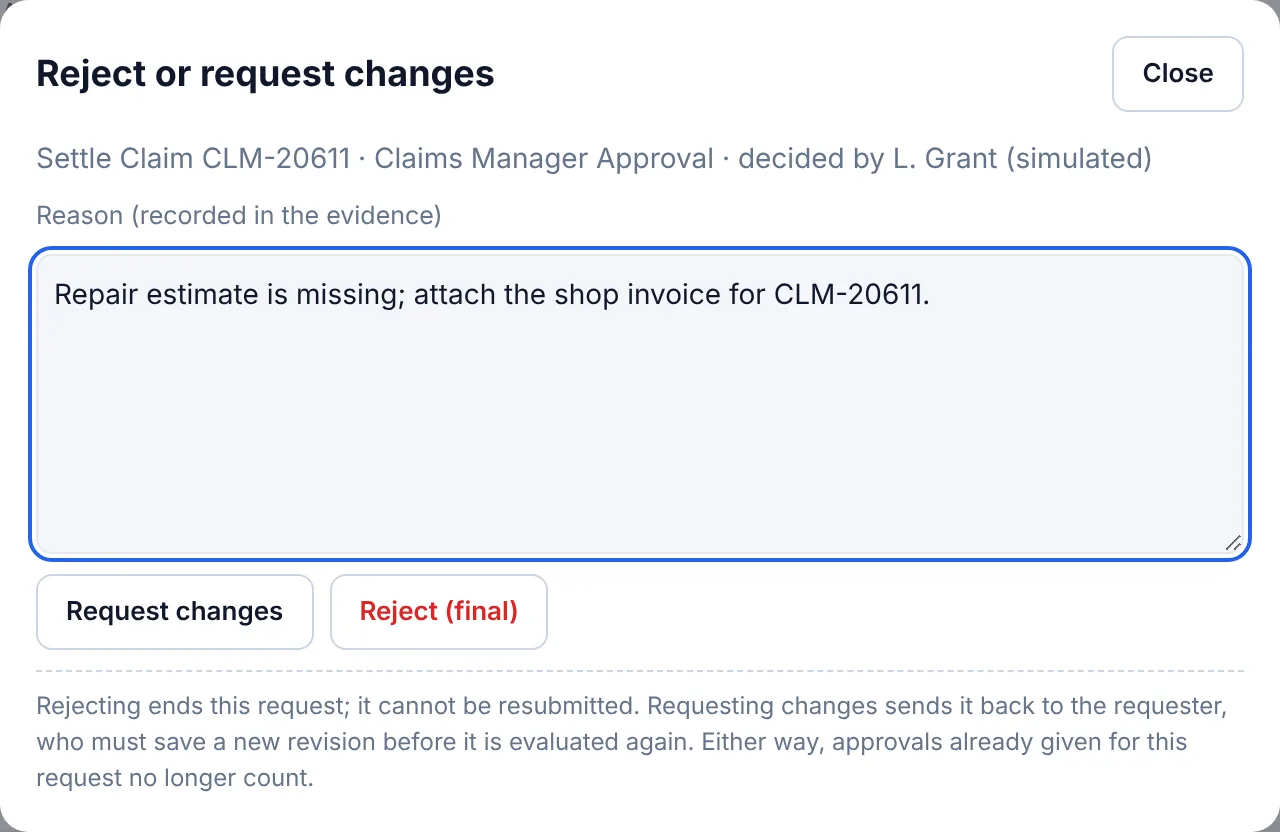
An approver can also say no. Choose Reject or request changes, give a reason (it's recorded in the evidence), then:
- Request changes sends the request back to you. It shows Changes requested, and the same revision can't be evaluated again: choose Save a new revision and re-evaluate, which needs fresh approvals.
- Reject (final) ends the request. It can't be resubmitted; start a new request if the work is still needed.
Either way, approvals already given for that request stop counting. A request that is blocked, withdrawn or rejected can no longer reach approval, so any approval it never requested shows Not applicable with the reason, never Will be required. Approvals expire. Each pending approval shows Lapses …: 72 hours after it was requested, unless the institution's obligation sets another period. A lapsed approval can't be signed or used for execution; the decision is retired and the request must be evaluated again.
Step 4: Execution admission, receipt and outcome
Once every approval is recorded, choose Request execution admission. The server re-checks everything (decision still effective, approvals complete, file unchanged, agent and environment unchanged, tool active) and issues a single-use admission bound to the exact request. When the tool presents it, the server validates and consumes it in one step: it works once, expires after five minutes, and any change to the request makes it invalid.
Two things are then recorded separately, on purpose:
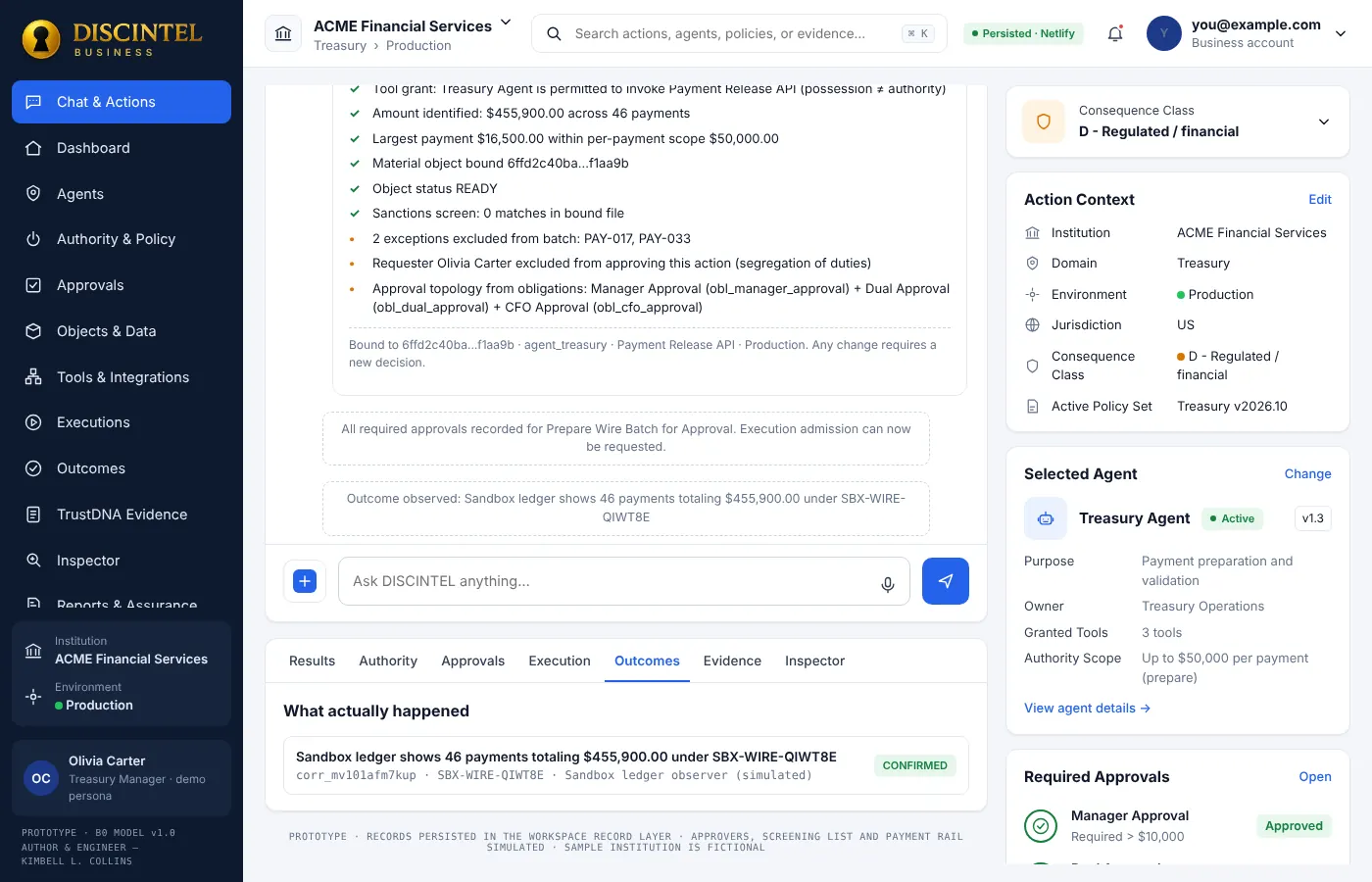
- Execution receipt: what the executing system says happened, for example "SUCCEEDED."
- Observed outcome: what an independent observer saw happen, for example "ledger shows 46 payments totaling $455,900." A receipt is a claim; an outcome is evidence.
Step 5: Closure, and what happens when things go wrong
An action closes only when its closure obligations are met: the outcome was independently observed and matches the request, and the evidence trail is complete. The server evaluates closure right after execution and records the result; your browser can't write it. The Execution tab shows Closure · CLOSED · server-evaluated. If an executed action shows Closure · not yet evaluated, choose Evaluate closure obligations there or on the action card.
Try the built-in simulations to see failure handling:
- Simulate: rail rejects. The payment system refuses. The admission is consumed, the action is marked failed, and Retry requires a new admission.
- Simulate: short settlement. The ledger shows fewer payments than approved. The outcome is a MISMATCH, and the action stays open as an exception instead of closing.
- Simulate: replay admission. An attempt to reuse a consumed admission is refused and recorded.
- Simulate: modify this file (in Objects & Data). The file's hash no longer matches, so any decision bound to it stops applying.
Claim settlements (sample)
The sample institution also has a Claims domain with a Claims Agent that settles property-and-casualty claims through the simulated Claims Payment API. Its thresholds are illustrative, not any insurer's mandate:
| Settlement exposure | Approval |
|---|---|
| Up to $10,000 | None (ALLOW) |
| Over $10,000 | Claims Manager |
| Over $100,000 | Claims Manager and CFO |
Splitting doesn't evade a limit. A settlement is approved on its cumulative exposure: the request plus earlier settlements on the same claim, or to the same payee, in the last 30 days. Three $4,500 settlements on one claim: the first two are allowed, the third needs a Claims Manager, and the decision says so: "Cumulative exposure requires Claims Manager Approval: this request alone ($4,500.00) would not". Withdrawn, blocked and held settlements don't count; pending, approved and executed ones do. A later request never changes a decision already made, but if a held request is re-evaluated, settlements that went ahead in the meantime are counted.
One file pays once. If the same file (the same bytes, even uploaded again under another name) is already bound to a pending, approved or executed request of the same kind, the new request is held: "Same file already submitted … One file pays once; withdraw one of the two requests." Withdraw the one you don't want, then use Re-evaluate on the other. This applies to wire releases too. Different files on the same claim aren't duplicates; they're counted toward cumulative exposure.
Demos and the sample batch. The sample wire batch is one file, so once it has been released, releasing it again is held. For another run, choose + → New sample wire batch: the same 48 fictional payments and planted exceptions, with a new batch reference, invoice numbers and value dates, so it is a new file. Requests that can never pay because their file was already paid are listed under Administration → Requests that can't proceed; Withdraw retires them all through the normal governed withdraw, recorded as evidence.
To try it, choose Claims Agent in the agent selector, upload a settlement file (CSV with claim_id, beneficiary, account_last4, account_on_file_last4 and amount_usd) and send Settle this claim (pay or process this claim works too). Asking for a summary instead gives the file's totals, payees and exceptions without starting a settlement; sanctions are screened in the settlement decision itself. A row whose payee account differs from the one on file is held out; if nothing payable remains, the settlement is held.
Research with evidence
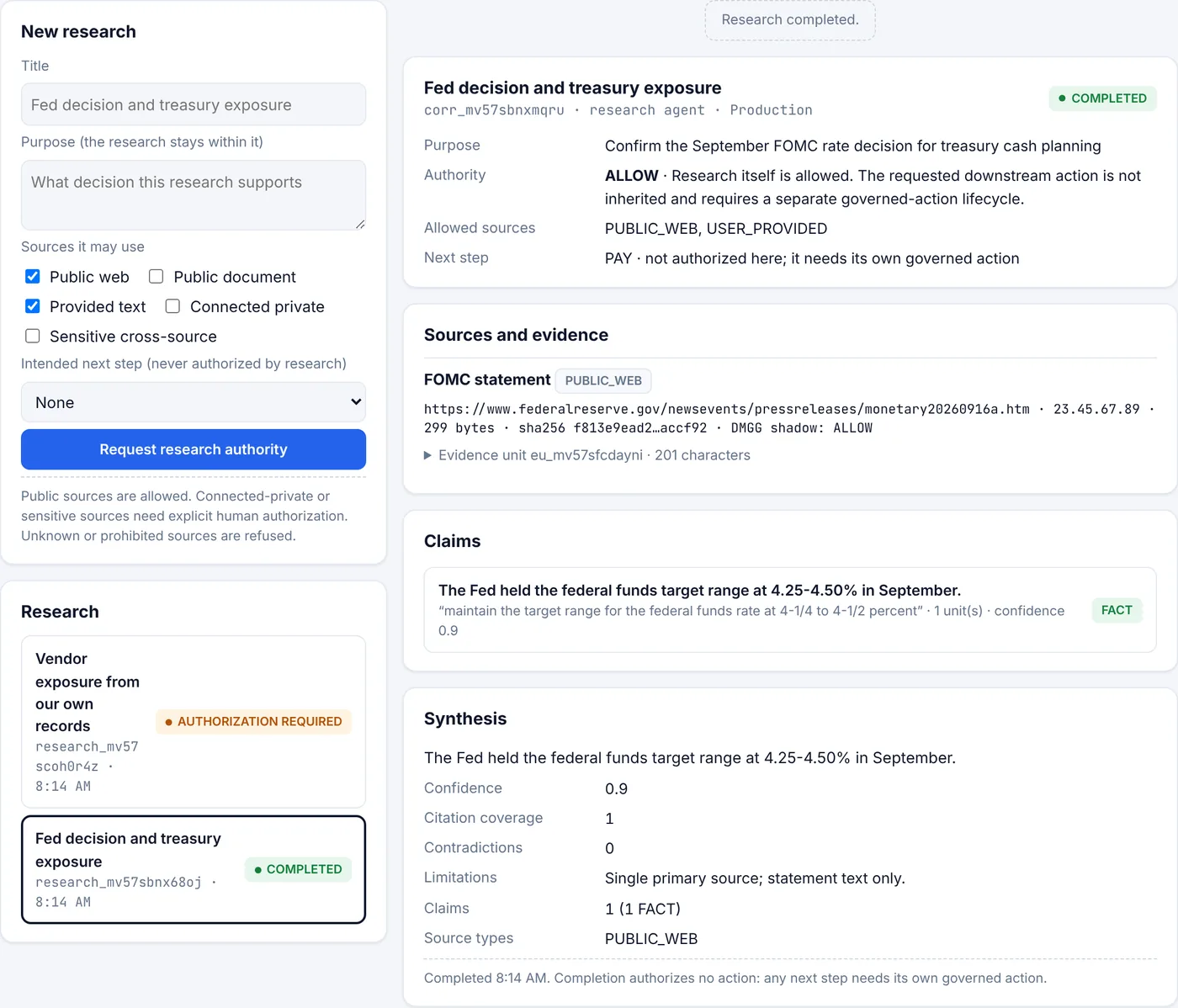
Research in the left menu gathers sources and turns them into claims you can check, without granting any authority to act. Every step runs on the server and is recorded in the evidence log.
- Request research authority. Give a title, the purpose the research supports, the source types it may use, and any intended next step. Public web, public documents and pasted text are allowed straight away. The next step (for example PAY) is shown as not authorized: research never authorizes an action; that needs its own governed action.
- Add sources. Enter a public URL and choose Retrieve, or paste text and choose Add as evidence. The server fetches public pages only: addresses on private networks, other ports, links with passwords, files over 2 MB, slow responses and anything other than text, HTML, JSON or XML are refused, and every redirect is checked again. Each source keeps its address (a link you can open), size, SHA-256 hash and the runtime governor's verdict, and its text becomes an evidence unit with its own hash.
- Record claims. Choose the type (FACT, INFERENCE, OPINION or UNCERTAINTY), write the claim, tick the evidence it rests on and add any limitation. A FACT must quote its evidence word for word (at least 20 characters; spacing, curly quotes and dash styles don't matter). A quote that isn't in the evidence is refused and the refusal is recorded.
- Synthesize. The synthesis is built only from accepted claims, with a confidence (the average, less 0.1 per contradicted claim) and its limitations.
- Complete research. The server checks the whole chain again (every claim, quote, evidence hash and source hash) before marking it Completed. Changed evidence blocks completion. Completing authorizes nothing.
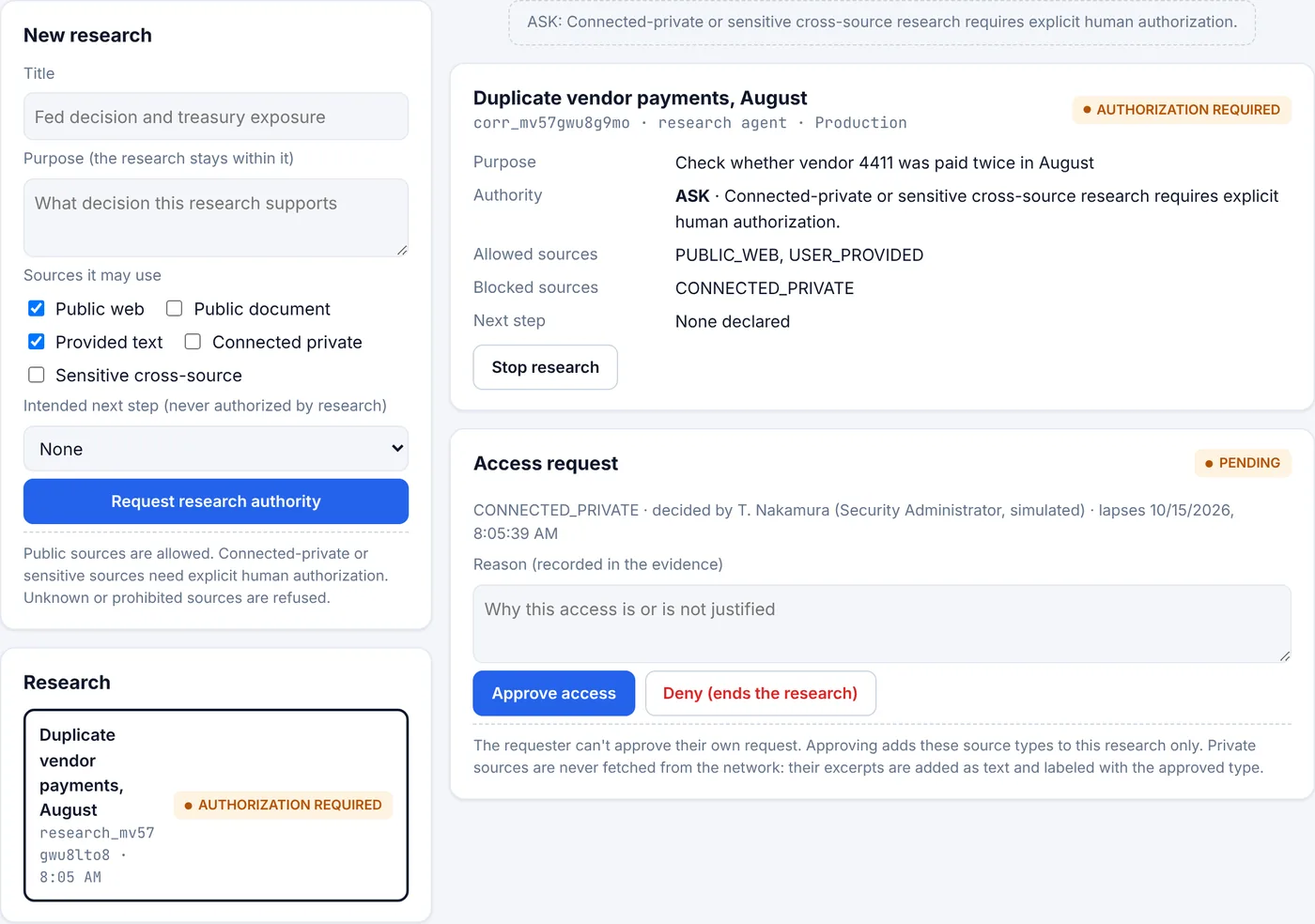
Private sources need approval. If you tick Connected private or Sensitive cross-source, the research waits at Authorization required and shows an Access request. A Security Administrator who is not the requester (in the sample, T. Nakamura, simulated) approves or denies it with a reason, within 72 hours. Approving opens those source types for that research only; denying ends it. Private sources are never fetched from the network: paste the excerpt and choose its approved type. The synthesis then says it contains private evidence.
Legal Intelligence
Legal Intelligence in the left menu is a research workspace for legal and regulatory questions. A matter is a research request run by the Legal Intelligence agent: it reads the sources you add, then drafts a research memo and a table that traces each legal provision to a technical control, a test and the evidence you would need. It is a draft for an attorney. It does not file, send, sign or give a final opinion, and it takes no action.
- Open a matter. Give a title, write the legal question (the agent stays within it) and tick the jurisdictions in scope: United States (federal), North Carolina, South Carolina, Colorado and the European Union. To try it, choose a demo matter and Fill in.
- Add sources. Add public pages and public documents by address, or paste text. The server retrieves each page itself, through the same checks as Research. A demo matter offers Add all for its sources. Confidential client material is outside this version and is never sent to the model.
- Run the agent. A draft takes one to three minutes. The agent receives this matter's evidence and nothing else, and the server then checks every proposition before anything is recorded. Run the agent is disabled until a source has been added.
- Read the draft. It shows the counts (propositions with a verified quote, unverified, inference, uncertainty), the memo, the traceability table, the gaps found, and any action the agent asked for. Actions are never executed: each is checked against policy and shown as blocked or held.
- Check the sources. Sources cited lists every source the draft relies on. Each source is a link to the page the server retrieved, with its standing in the legal source registry and the propositions that cite it. The source of each proposition, and the sources behind each traceability row, are links too. Text you pasted has no public page, so it shows Provided text (no link). Links open in a new tab; check the page yourself before relying on a quote.
- Counsel review. A licensed attorney reads the draft against its sources and records a decision with a note: Approve as a draft or Request changes. The attorney's licence is self-attested and recorded; DISCINTEL cannot verify it. Approval accepts the work as a draft for internal use and authorizes no filing, sending or other external action.
Regulatory context
For a decision that takes effect in the European Union or a member state, the decision card shows a Regulatory context line: the DORA and NIS2 events that apply, each with its date, severity and a link to its source. The list comes from a dated, hashed snapshot published by the DISCINTEL core platform, and it shows the snapshot's date; if the snapshot is more than 120 days old the card says it may be out of date. The context never changes a decision's outcome and is not legal advice. A US-only institution, like the sample, has none. In the Inspector, Reconstruct and verify re-checks the context against the recorded snapshot and reports MATCH or MISMATCH.
Language
The language menu in the top bar shows English. Choose Español or Français to show the screens and the guided tours in that language; English stays the base. In Spanish or French you can type a request in that language and chat routes it like its English equivalent. An amount that could be read two ways, such as $10.000, or one that is not in US dollars, is asked about and never guessed. The translations are awaiting native-speaker review, and these guides are in English only.
4. Screen by screen
Dashboard
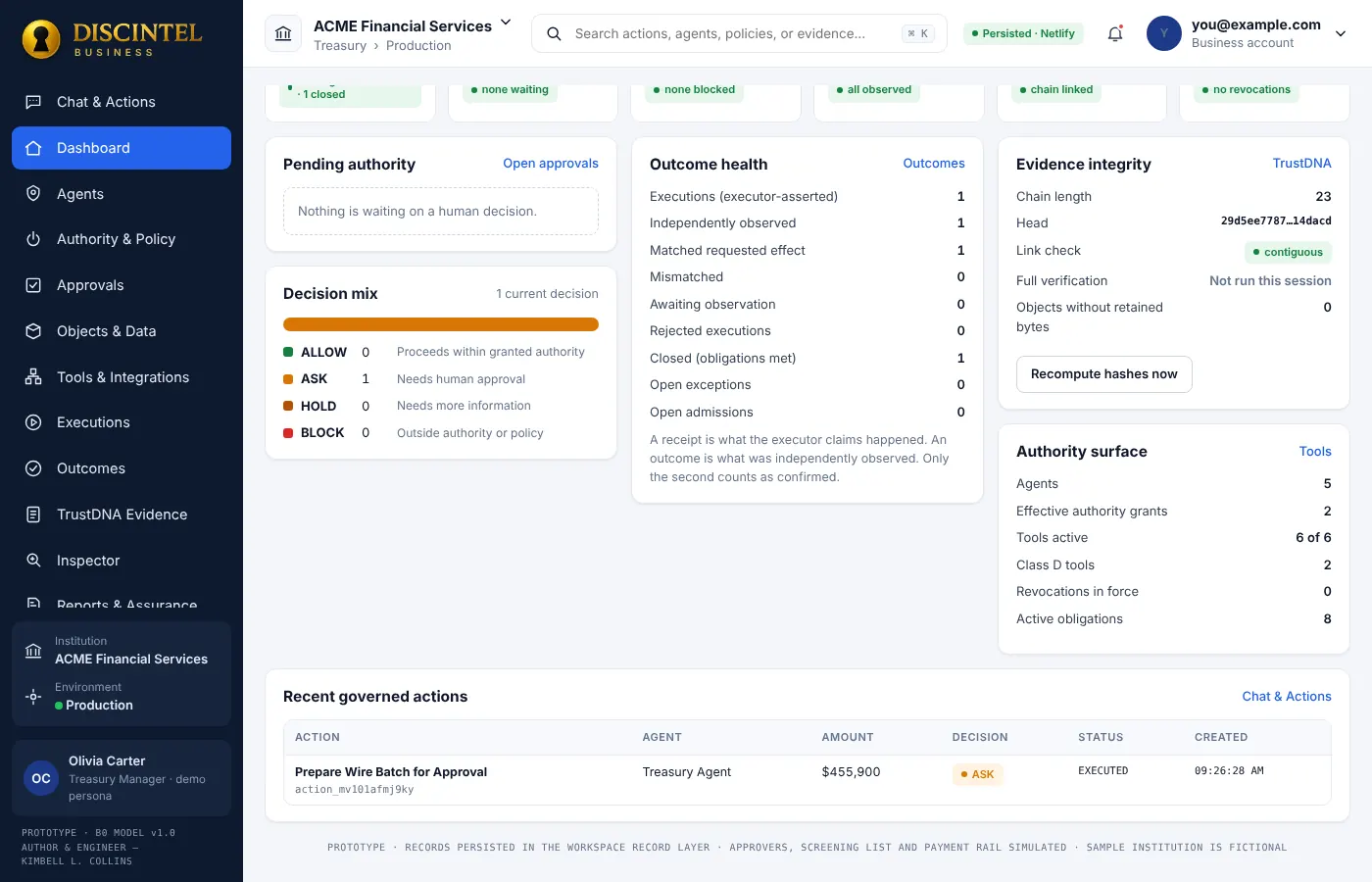
Your authority posture, computed live from records: governed actions, pending approvals, decisions by verdict, outcome health (executed, observed, matched, mismatched), evidence integrity (chain length, head, link check) and authority surface (agents, grants, tools, revocations). Nothing on it is typed in by hand; every number traces to a record. Recompute hashes now re-verifies the evidence chain.
Agents
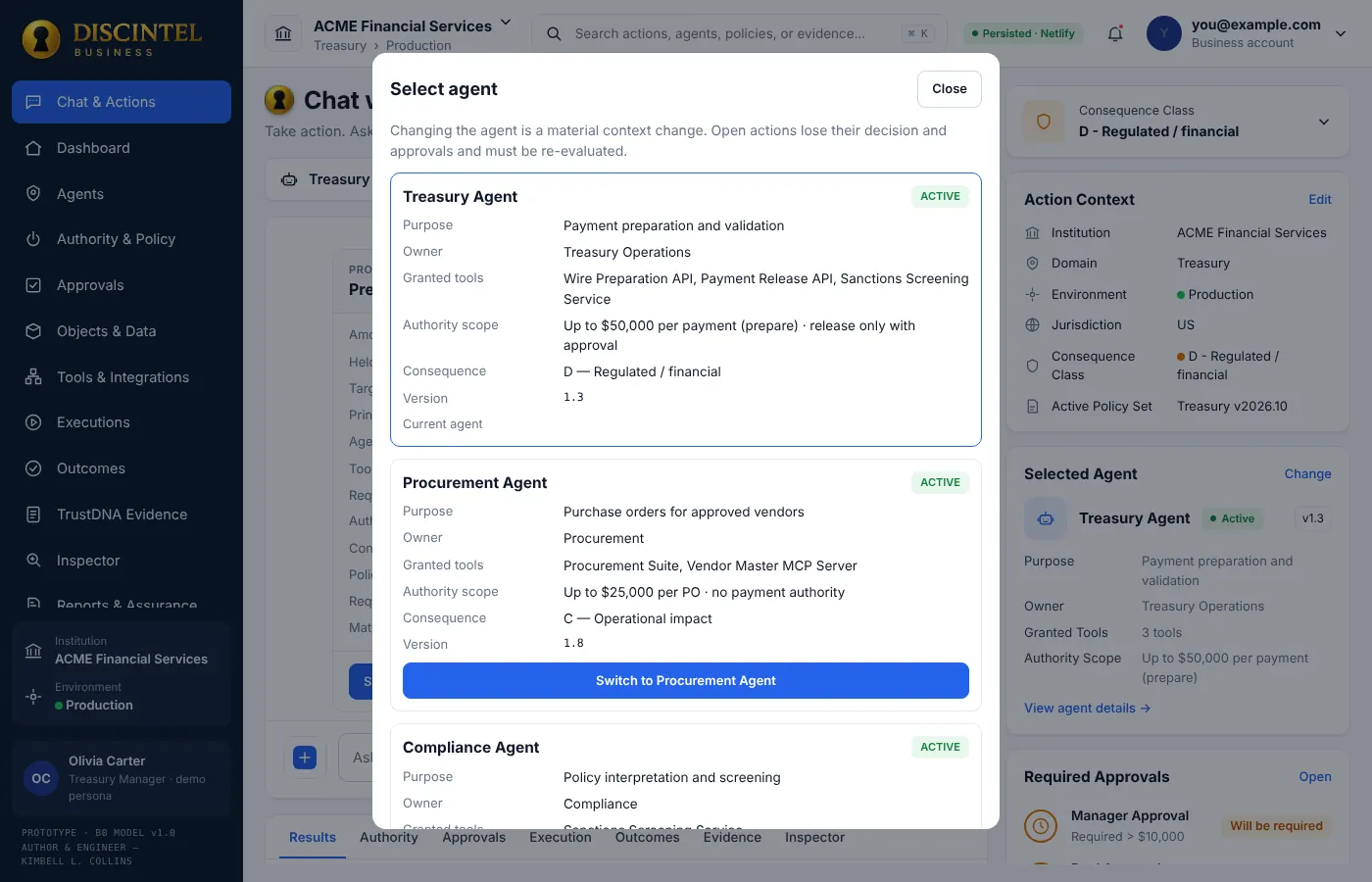
Opens a panel listing each agent's purpose, owner, granted tools, environments, authority scope, consequence class and version. An agent's record also shows its Validated version. If the version has changed since, the record says Revalidation needed, and a request with a consumer-facing effect is held until a Security Administrator who is not the requester records a revalidation with a note of what was revalidated (at least 10 characters); an effect that is not consumer-facing gets a warning instead. In the sample, the Security Administrator is simulated. Switching the active agent is a material change: open actions lose their decision and approvals and must be re-evaluated. For an agent's full record, including its change history, open Administration and choose the agent's name.
Handoffs
A blocked or held settlement does not stop at a refusal. It reaches a named owner, who acknowledges it within four business hours or it escalates, and who records what was done for the customer. DISCINTEL records the outcome the institution reports; it does not judge it. A handoff opens when a settlement is blocked or held, and the menu shows how many are open. The owner records one outcome: fulfilled elsewhere, declined with an explanation, referred to a specialist, or resubmitted.
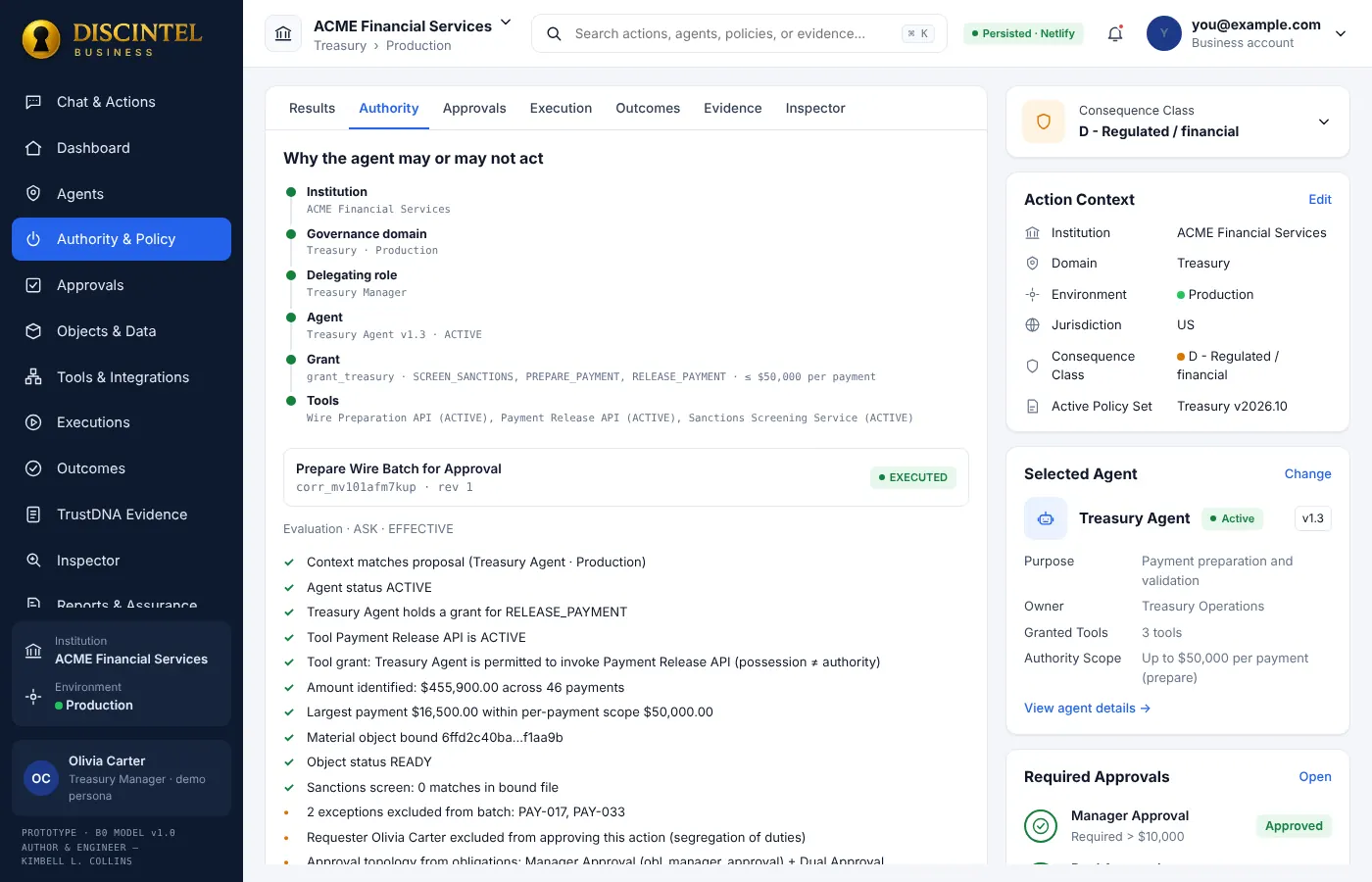
Authority & Policy
Answers "why may this agent act, or not?" It traces the chain from institution → governance domain → delegating role → agent → grant → tools, then lists every check in the current evaluation.
Approvals, Executions and Outcomes
The approval topology and signatures for the action in focus; the admission and execution receipt with the checks that were re-verified; and what was independently observed.
Objects & Data
Every file or data object you've provided: type, status, sensitivity, business type and hash. Open one to see its details or simulate a modification.
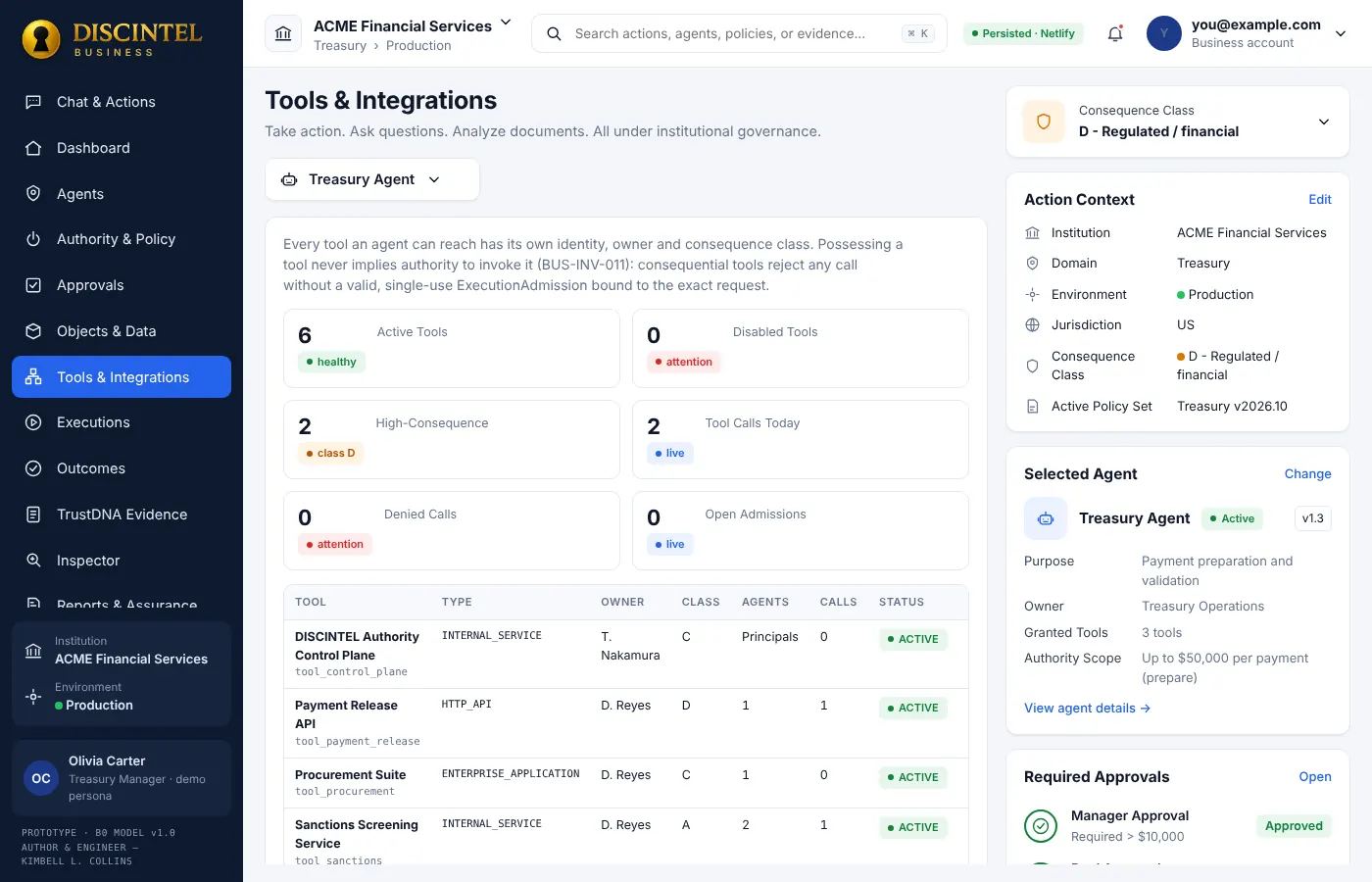
Tools & Integrations
Each tool the agents can call (HTTP APIs, MCP servers, internal services and enterprise apps) with its owner, consequence class, permitted agents, call counts and status. Disabling or re-enabling a tool is itself a governed change: it is proposed with a reason, approved and recorded. While a tool is disabled, no action that depends on it can be admitted or executed.
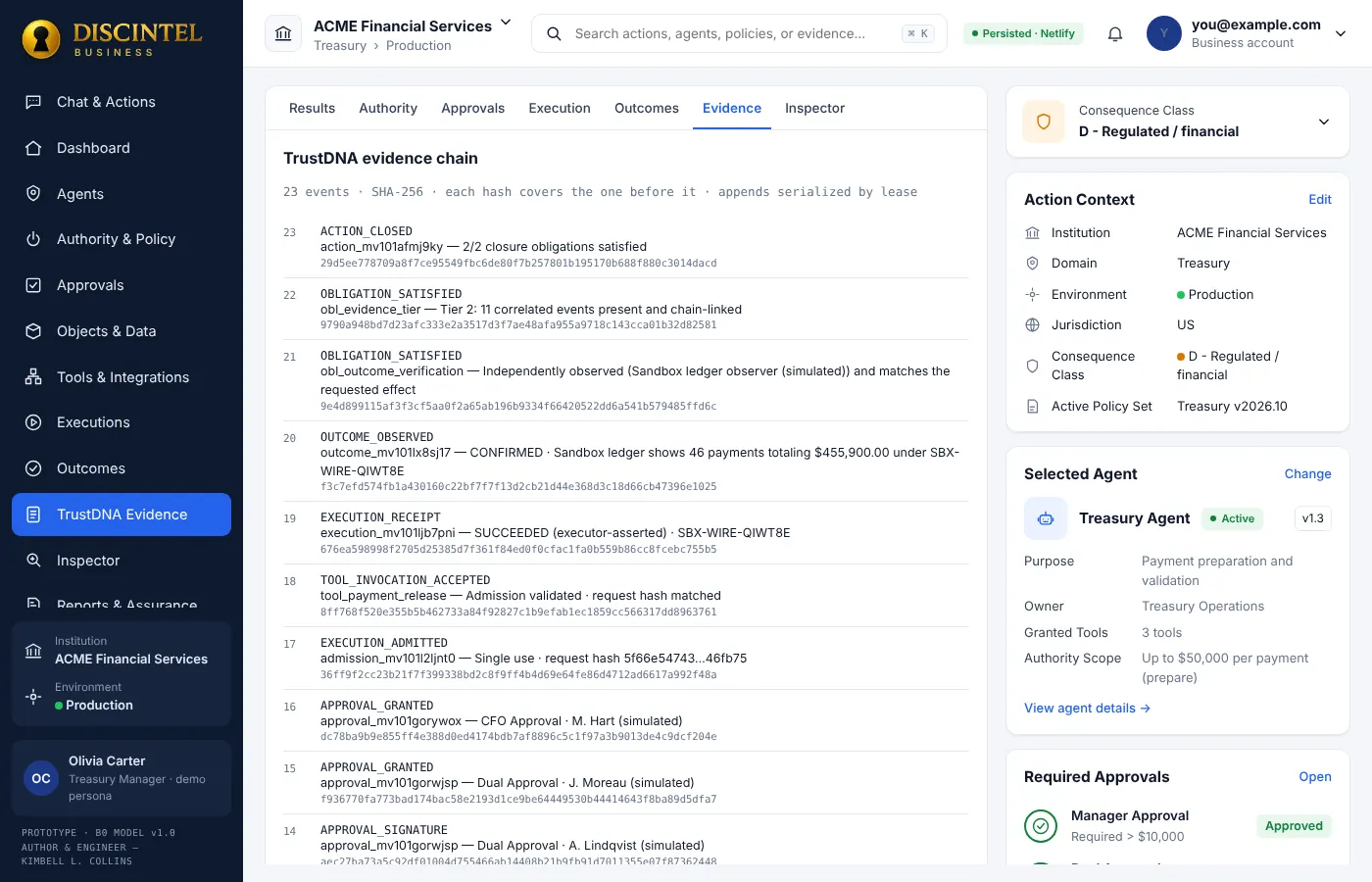
TrustDNA Evidence
The evidence log: every event in order, each with a SHA-256 hash that covers the event before it. Changing or removing any past event breaks the chain, and verification reports exactly where.
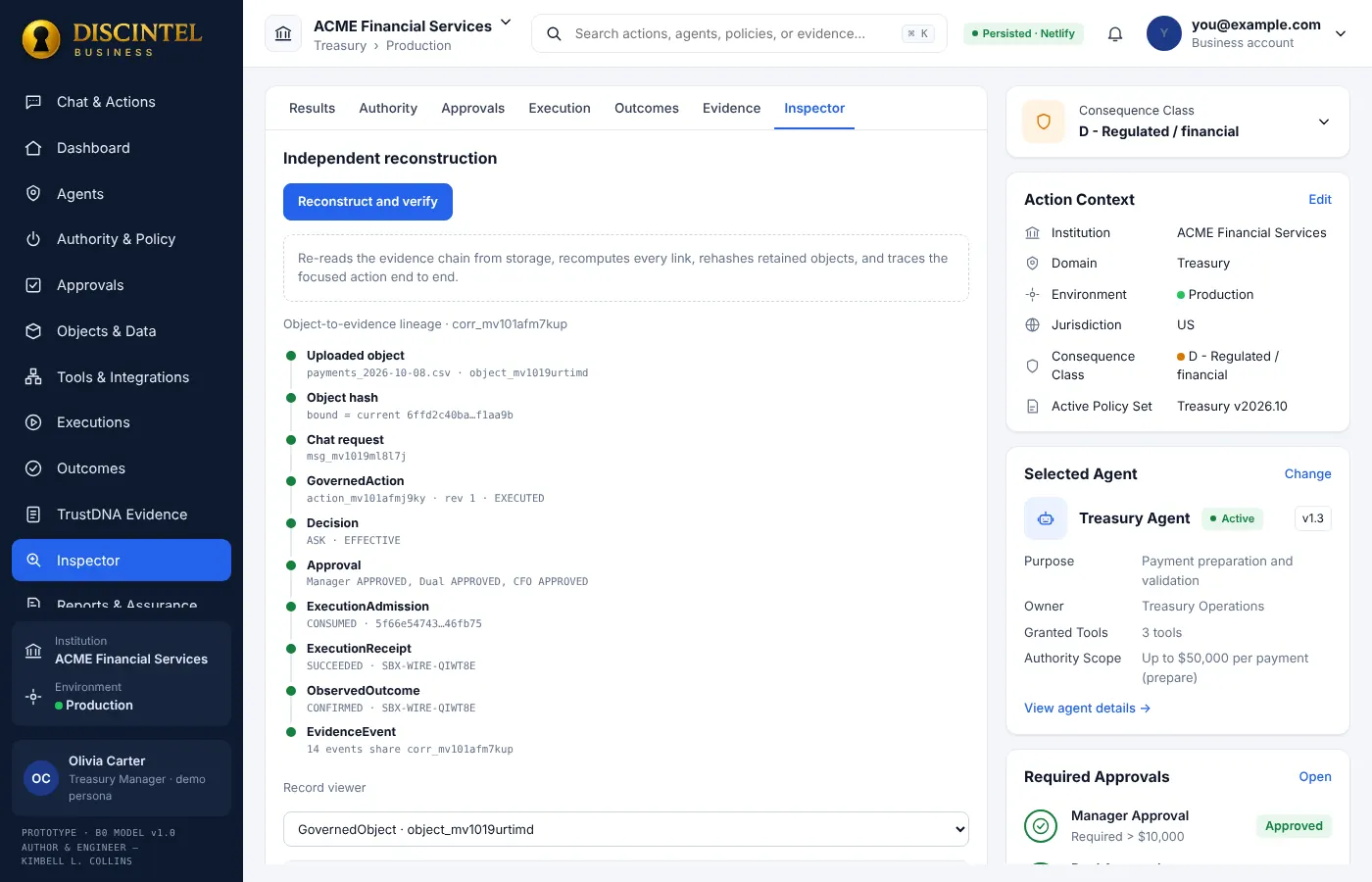
Inspector
Reconstruct and verify re-reads the evidence chain from storage, recomputes every link, rehashes retained files, and traces the focused action end to end: file → request → action → decision → approvals → admission → receipt → outcome. The record viewer lets you open any underlying record.
5. Administration
Changes to governance itself go through the same lifecycle as any other action. They are proposed, evaluated, approved, admitted and evidenced. Nobody can quietly change who holds authority.
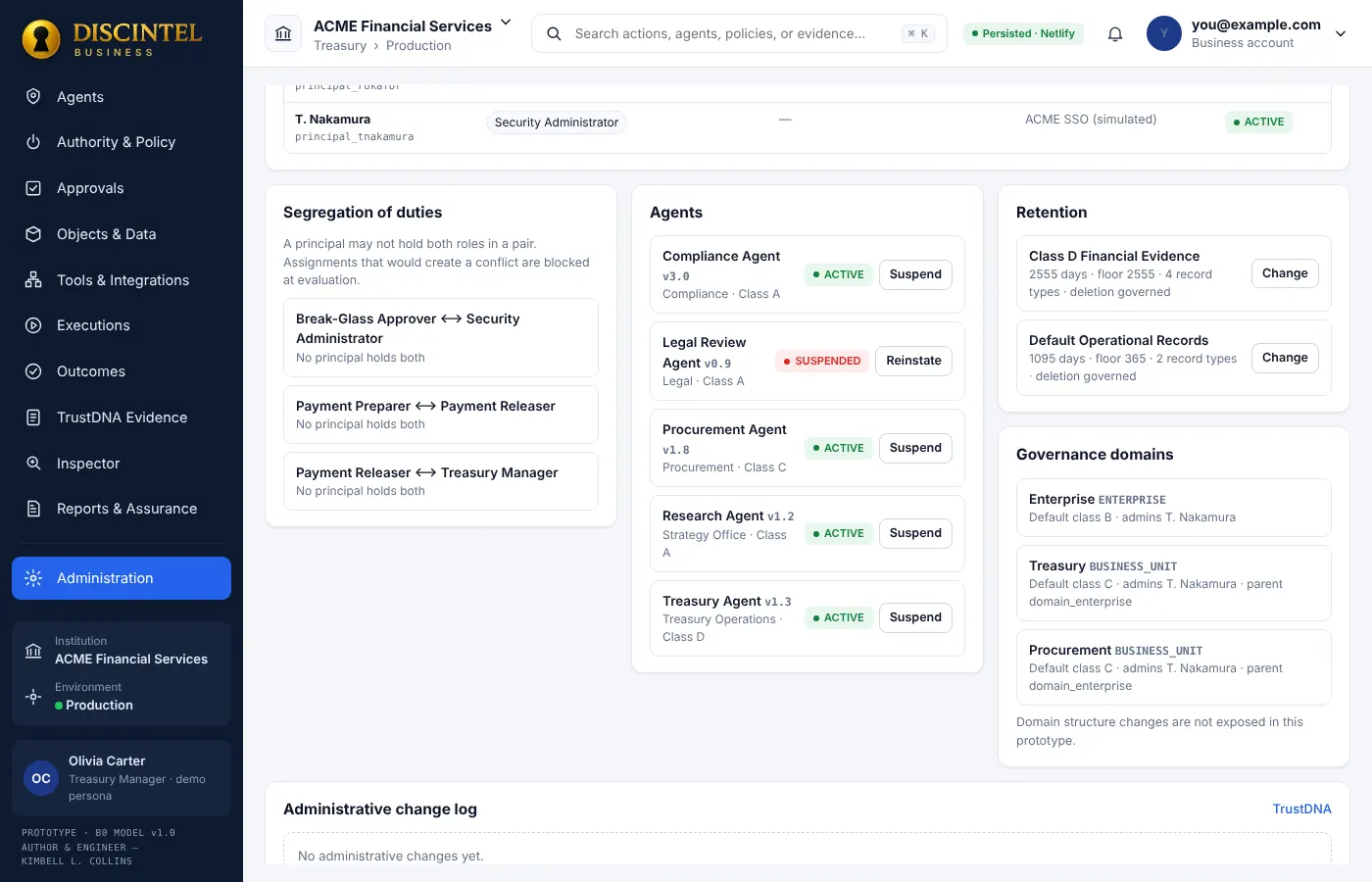
- Assign role / Remove role. Blocked if it would break a segregation-of-duties rule (for example, Payment Preparer and Payment Releaser), if the requester would be changing their own role, or if it would leave a required approval with too few eligible approvers.
- Break-glass access. A temporary role for an emergency. It needs a real justification (at least 20 characters), expires automatically, and the expiry is recorded.
- Retention policies. Changes can't go below the enforced minimum period.
- Suspend / reinstate an agent. Suspending an agent immediately invalidates its open actions and admissions; they require re-authorization.
- Agent environments. Choose Environments beside an agent to change where it may act. The button stays disabled until your selection changes something. Removing Production takes the agent out of live use, so it needs an explicit confirmation; without it the request is held.
- Agent record. Choose an agent's name to see its status, environments, allowed effects, tools, every administrative change made to it, and its record history.
Every administrative change needs at least the Security Administrator's approval, and you can withdraw a pending one before it executes. Step-by-step procedures for each change are in the Admin playbook.
6. Reports and assurance
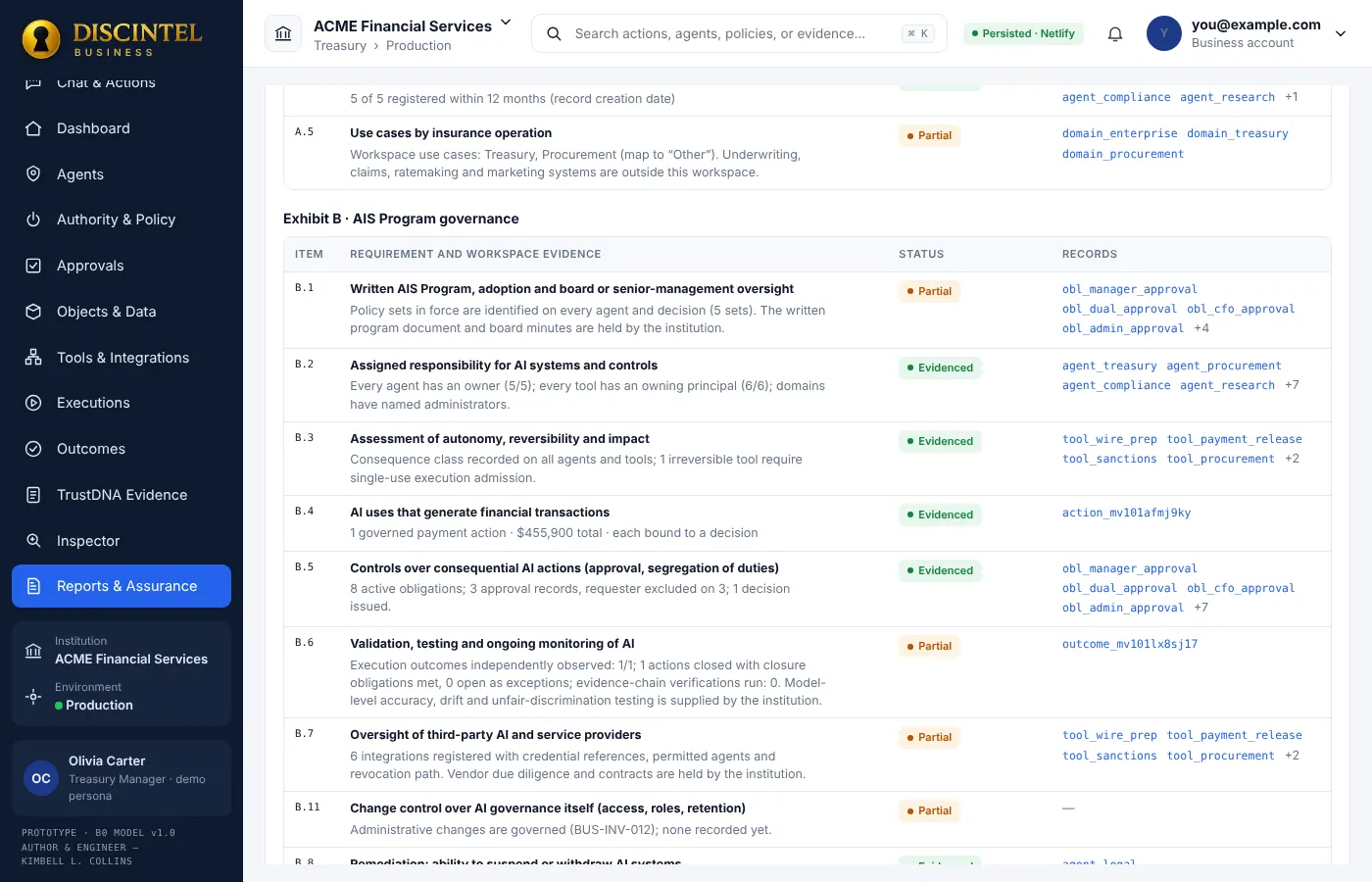
Reports & Assurance maps your workspace records to the NAIC AI Risk Evaluation Supplement (v5.0 exposure draft). Each item is marked Evidenced (shown by records), Partial (records plus documents the institution holds) or Institution supplies (outside the workspace), with links to the records behind it.
- Generate NAIC evidence package. Downloads a JSON package of the mapped records, evidence events and verification results, sealed with a package hash anyone can recompute.
- Generate action package. The same, for a single governed action end to end.
- Print or save as PDF. A clean printable report.
7. The Personal space
The Personal space is for individuals. It holds your DISC behavioral profile and the rules your AI personas must follow. It never leaves your device: everything is encrypted in your browser with a passphrase only you know, and nothing is sent to DISCINTEL or to any AI service.
The Personal tour walks through it on real screens: creating the vault, the DISC profile, a persona, checking a request, the activity log and backup. It also opens from Guided tour in the Personal footer.
Create your vault
- Choose a passphrase of at least 10 characters. A short sentence works well.
- Confirm that you understand the recovery rule, then choose Create vault.
Use Lock whenever you step away; unlocking needs your passphrase.
Your DISC profile
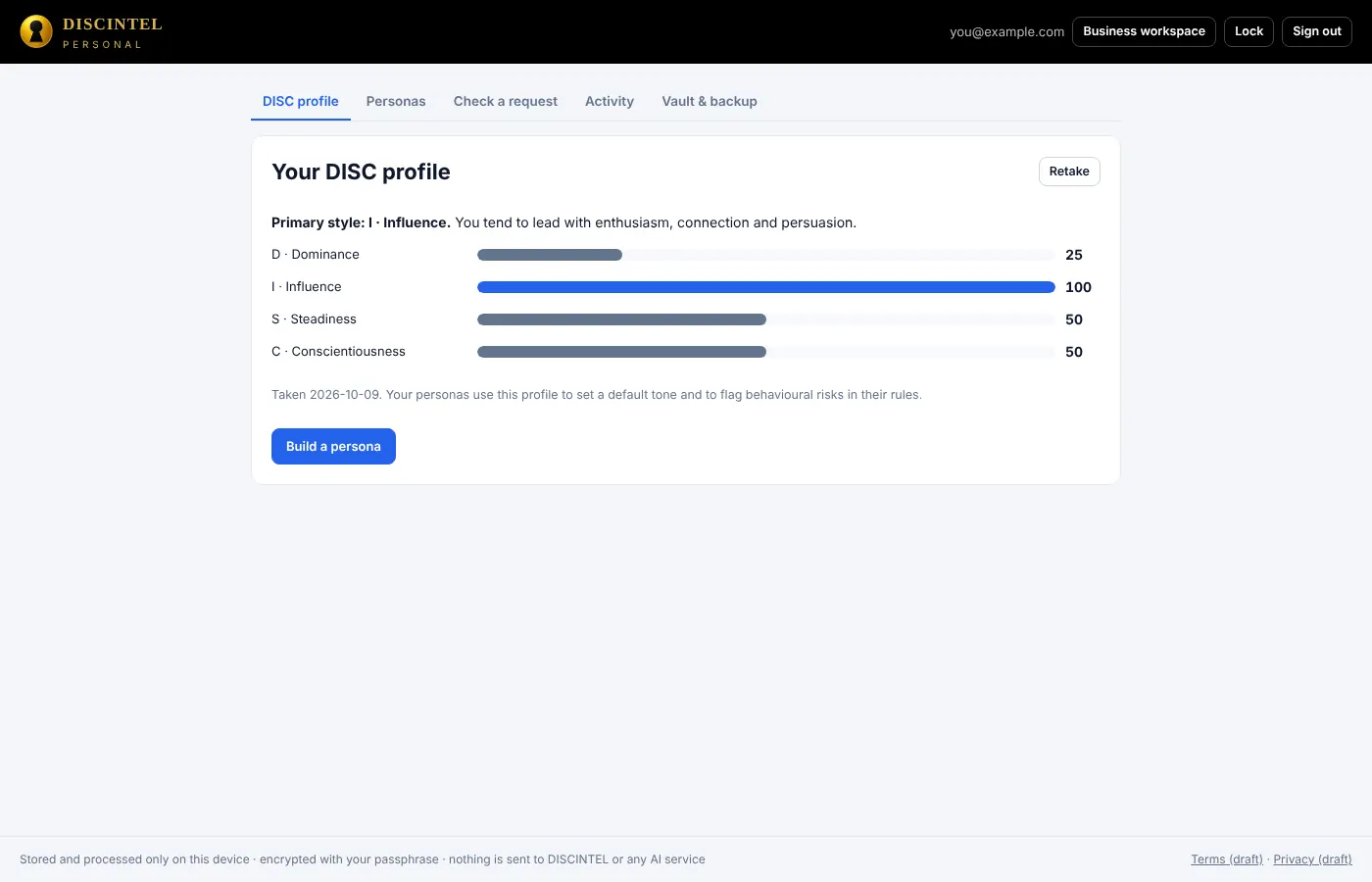
Rate 24 short statements from 1 (disagree) to 5 (agree). You get a score from 0 to 100 on each of four styles:
- D · Dominance: direct, decisive, results-first
- I · Influence: enthusiastic, persuasive, people-first
- S · Steadiness: calm, patient, supportive
- C · Conscientiousness: precise, careful, rules-first
Your highest score is your primary style, and any style within 15 points of it is shown too. Choose Retake any time.
Build a persona
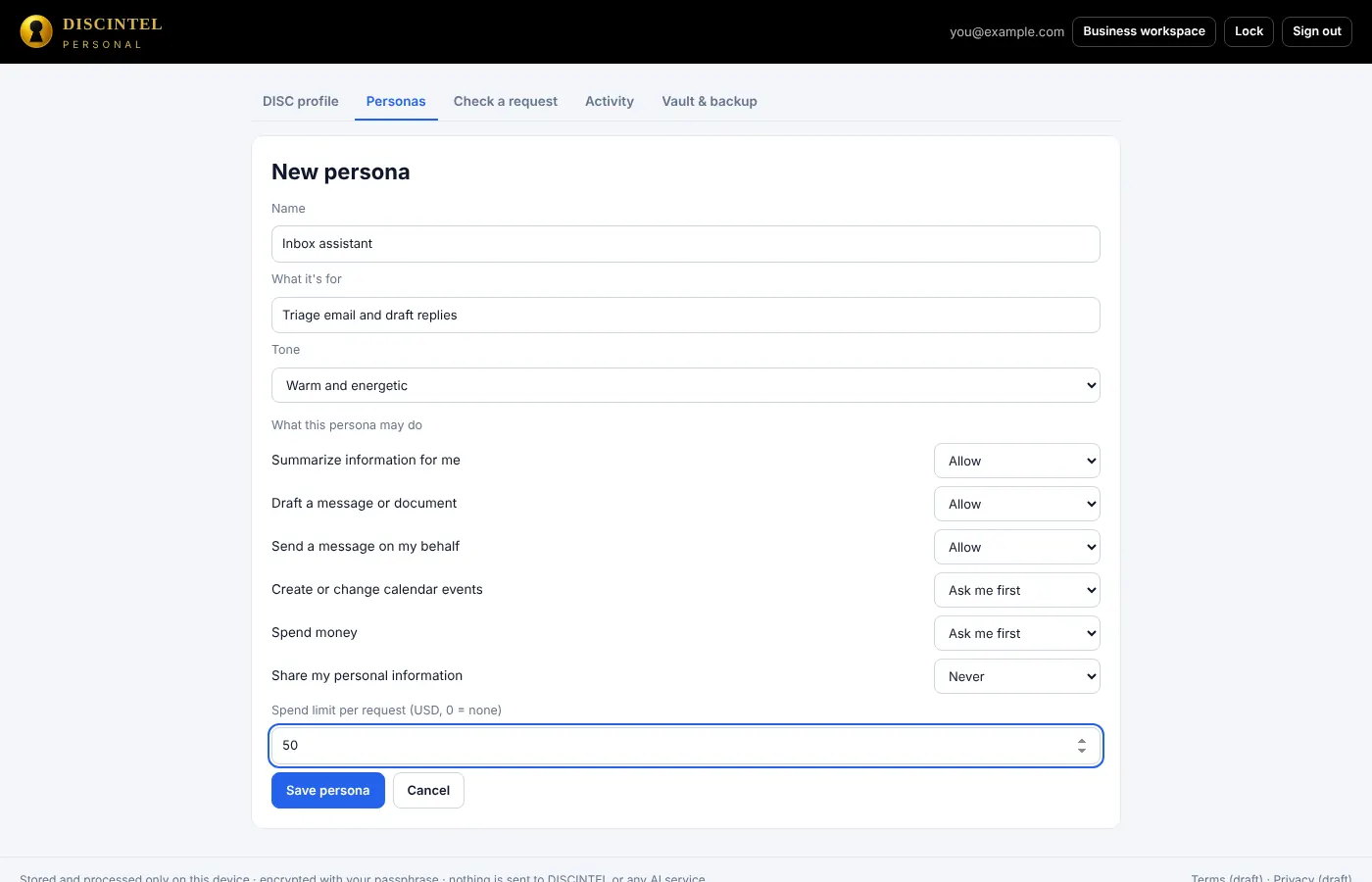
A persona is a rule set for an AI that acts for you, for example an inbox assistant or a shopping helper. Give it a name, a purpose and a tone; the tone defaults to suit your DISC style. Then set what it may do:
| Action | Choices |
|---|---|
| Summarize information · Draft a message or document · Send a message on my behalf · Create or change calendar events · Spend money · Share my personal information | Allow, Ask me first or Never |
| Spend limit per request | A dollar cap; 0 means no cap |
DISCINTEL flags rules that clash with your profile. For example, a fast-moving D profile with autonomous sending gets a high-risk flag, because it removes your review step before a message leaves.
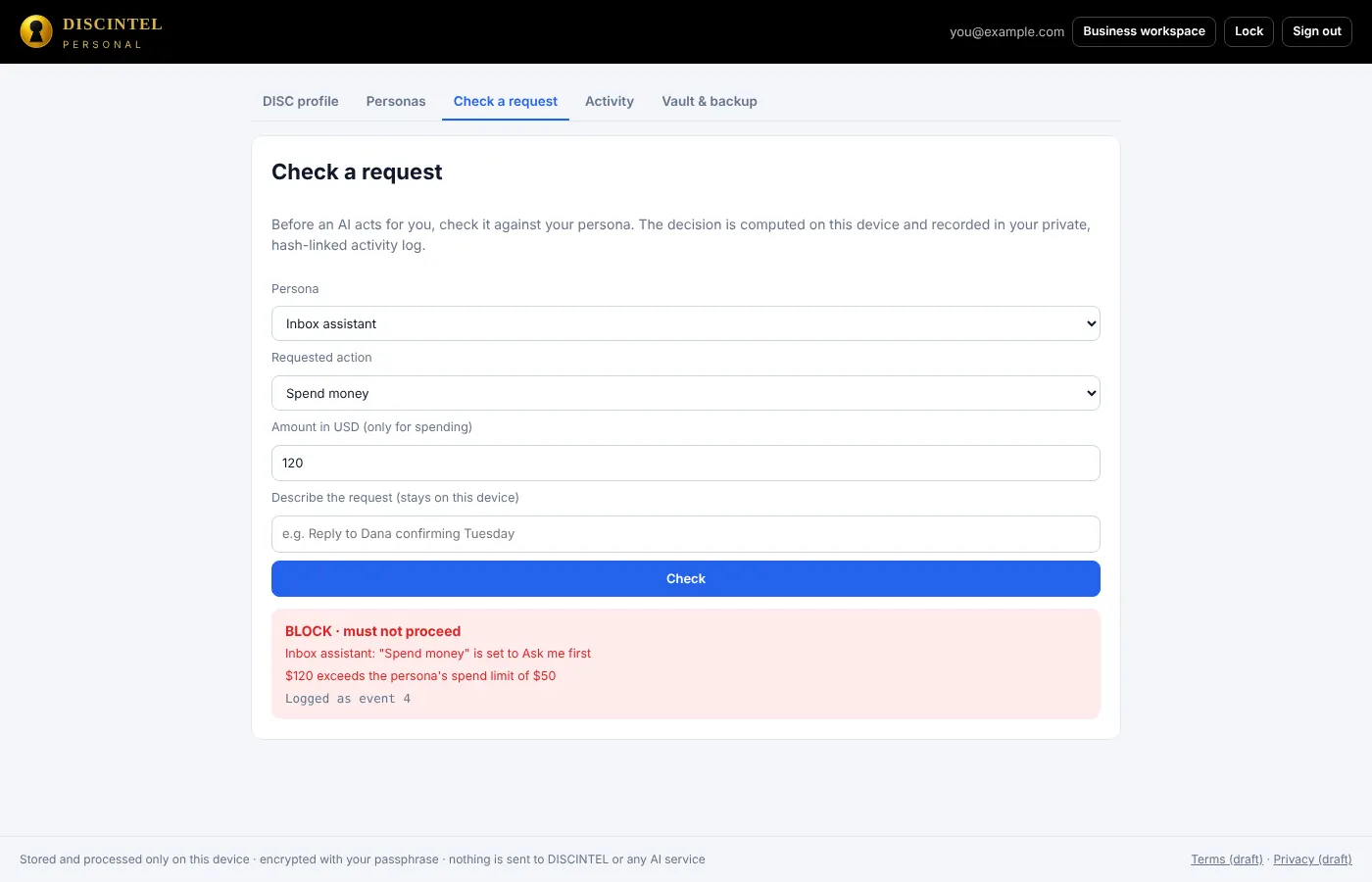
Check a request
Before an AI acts for you, choose the persona, the requested action, the amount (for spending) and a short description, then choose Check:
- ALLOW: the persona may do it.
- ASK: it needs your confirmation first.
- BLOCK: the action is set to Never, or the amount is over the persona's spend limit.
Each check is recorded in your Activity log, a private hash-linked log. Verify log recomputes it to show nothing was altered.
Backup and moving devices
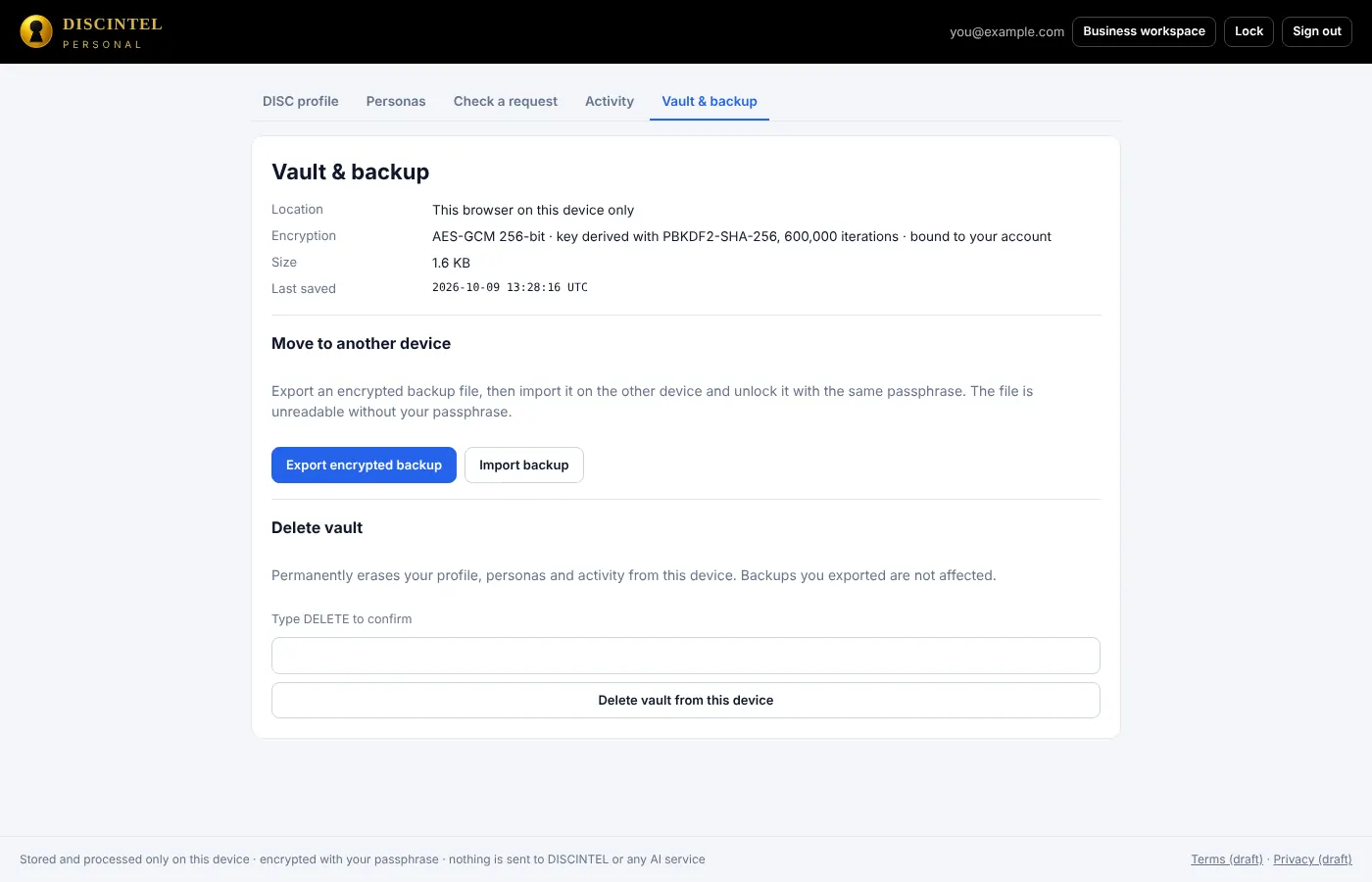
Your vault lives in this browser on this device, for this exact web address. To keep it safe, or use it somewhere else:
- Open Vault & backup and choose Export encrypted backup. Store the file somewhere safe, such as a cloud drive; it's unreadable without your passphrase.
- On the other device or browser, sign in, open the Personal space and choose Import backup.
- Unlock it with the same passphrase.
Delete vault from this device (type DELETE to confirm) permanently erases it there. Backups you exported aren't affected.
Switching between Business and Personal
From the Personal space, choose Business workspace at the top. From the Business workspace, open your account menu (top right) and choose Personal space.
8. Privacy and security at a glance
- Sign-in runs through Auth0, with passkey support. Every request to the server carries a signed token that is checked every time.
- Business data is stored on our hosting provider and isolated per account. No one else's account can read it.
- Personal data never reaches us: it is AES-GCM 256-bit encrypted in your browser, with a key derived from your passphrase (PBKDF2, 600,000 iterations).
- No AI providers, no trackers. DISCINTEL doesn't send your content to AI models, and it runs no advertising or analytics scripts.
- Evidence is tamper-evident. Changes to past records can be detected and pinpointed.
Full details: Privacy Policy · Terms of Service.
9. Troubleshooting
"Approval … lapsed"
The approval was pending for longer than its period (72 hours by default). The decision has been retired; choose Re-evaluate on the request to get a fresh decision and new approvals.
"Changes were requested at revision …"
An approver sent the request back. Change what they asked for, then choose Save a new revision and re-evaluate. The old revision can't be submitted again.
A research URL was refused
The message says why: a host that resolves to a private or reserved address, a port other than 80 or 443, a page over 2 MB or slower than 15 seconds, or a file type other than text, HTML, JSON or XML (PDFs aren't supported yet). For a source the server can't fetch, paste the relevant text instead.
"The quote does not appear word for word in the cited evidence"
A FACT has to quote its evidence exactly. Open the evidence unit, copy the sentence from it, and make sure the right evidence is ticked. If you are drawing a conclusion rather than quoting, record it as an INFERENCE.
Research is stuck at "Authorization required"
It asked for private sources. A Security Administrator must decide the access request on the research page; the requester can't. If the request lapsed, start the research again.
Legal Intelligence: "Run the agent" is disabled
The agent runs only on a matter that is open and has at least one source. If the page says Add sources first, add them. If it says the matter is cancelled or completed, open a new matter.
Legal Intelligence: "The draft is taking longer than expected"
Drafting runs in the background and can take a few minutes. Reload in a minute to see whether it finished.
Legal Intelligence: the review is refused
Only a licensed attorney can review a draft: tick the attestation, enter your name and write what you checked or what must change, in at least 20 letters.
A source shows "Provided text (no link)"
The source was pasted as text, so it has no public page to link to. Its quote was still checked word for word against the pasted text.
I didn't get the verification email
Check your spam or junk folder. You can keep using DISCINTEL while you wait. If it hasn't arrived after a few minutes, email legal@getdiscintel.com.
"Sign in to continue" or "Your session ended"
Your session expired. Sign in again; your workspace is where you left it.
The save chip doesn't say "Persisted"
Saving… clears on its own. Save failed means a record wasn't saved: choose the chip to see which record and why. If the server refused it, the reason is shown, and nothing else was affected. Reload to see exactly what the server holds. Read-only means your access level can view records but not change them. If it continues, email us.
"Sanctions screening was not run"
The selected agent isn't permitted to use the Sanctions Screening Service. Switch to an agent that is (in the sample, Treasury or Compliance) and ask again.
"Environment … is not registered there" or "is not permitted there"
The agent, the tool or the domain doesn't allow the environment you're in. Switch environment in Action context, or ask an administrator to change the agent's environments.
My Personal vault is missing
Vaults are stored per browser, per device and per web address. If you switched browsers, used a private window, cleared site data or used a different address, import your exported backup.
My passphrase doesn't unlock the vault
Passphrases are case-sensitive, so check Caps Lock. We can't reset or recover it. If it's truly lost, delete the vault and start a new one, or import an older backup whose passphrase you remember.
A decision I had stopped applying
Something material changed: the file, the agent, the environment or the tool. Re-evaluate the action against its current context.
I want to delete my account
Email privacy@getdiscintel.com from your account's address. Personal vaults you can delete yourself under Vault & backup.
10. Glossary
| Environment | Production or Test (UAT). A label every action carries, checked against the tool, the domain and the agent. |
| Runtime governor (DMGG) | A second, independent check on each tool use. In shadow mode its verdict is recorded but not enforced. |
| Closure | The server's final check that an executed action's obligations were met. |
| Withdraw | Retire a submitted action before it executes; its decision and approvals stop applying. |
| Principal | A person who holds roles and can delegate or approve. |
| Agent | An AI system that proposes and performs actions, only within the grants it holds. |
| Grant | Authority given to an agent: which effects, within which scope and amounts. |
| Obligation | A rule an action must meet, such as an approval threshold or an outcome check. |
| Matter | A Legal Intelligence research request: a legal question, its jurisdictions, its sources and the drafts made from them. |
| Proposition | One statement in a Legal Intelligence draft. A FACT must carry a quote from its source; the server checks it word for word. |
| Counsel review | A licensed attorney's recorded decision on a draft. It accepts a draft for internal use and authorizes no external action. |
| Handoff | The record that a blocked or held request reached a named owner, who must acknowledge it and record what was done. |
| Regulatory context | The DORA and NIS2 events that apply to an EU decision, from a dated, hashed snapshot. Informational only. |
| Consequence class | How serious an action's effects are, from A (low) to D (regulated or financial). |
| Governed action | A specific proposed act by an agent, bound to its material files and context. |
| Decision | The ALLOW, ASK, HOLD or BLOCK verdict on a governed action, with every check listed. |
| Execution admission | A single-use, expiring permission to perform exactly one approved request. |
| Receipt vs. outcome | What the executor reports versus what was independently observed. |
| TrustDNA | DISCINTEL's hash-linked evidence log. |
| Segregation of duties | Pairs of roles one person may not hold together, and the rule that requesters can't approve their own actions. |
| Request changes / Reject | An approver's two ways to say no: send the request back for a new revision, or end it for good. |
| Evidence unit | The text taken from one research source, with its own hash, that claims must cite. |
| Claim | A statement in research tied to its evidence. A FACT must quote its evidence word for word. |
| Synthesis | The research summary, built only from accepted claims, with confidence and limitations. |
| Access request | The approval a Security Administrator gives or refuses before research may use private sources. |
| Break-glass | Temporary emergency authority that expires automatically and is fully recorded. |
11. Getting help
Questions, feedback or problems: legal@getdiscintel.com. Privacy requests and security reports: privacy@getdiscintel.com.